Transitioning from 2d to 3d autocad drawings

Showing posts with label 3D Modeling. Show all posts

Sunday, August 17, 2008

3D Modeling 12: Getting 2D view from a solid model by Flatshot command


One of the new features coming with Autocad 2007 is FLATSHOT command. By means of this command, you can get aspects of solid 3D objects. The command which is very easy to use gets the projection image of your instant point of view. We are going to use 3D gusket drawing which we did as an application before. Let us download the drawing and proceed.
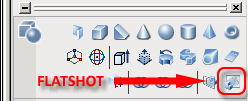
The only point that you have to be careful when you are using the command is to obtain the right point of view for your model which you want to the get the image of. This is very simple by using ‘View’ menu in Autocad.
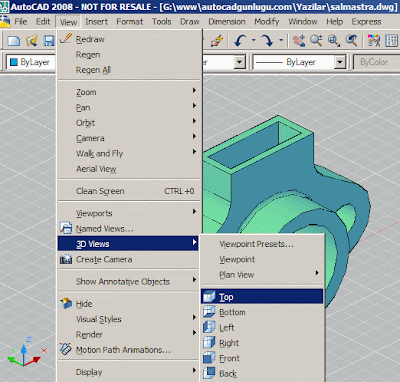
Fig.1
Firstly, switch to left side view by selecting ‘View/3D Views/Left’ option.
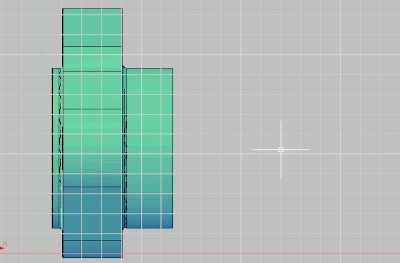
Fig.2 Left elevation of our gusket
Now, select the FLATSHOT command from the 3DMAKE part of the DASHBOARD and there comes the FLATSHOT dialog box
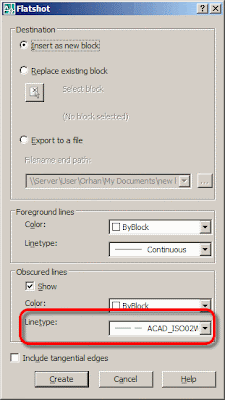
Fig.3
FLATSHOT outputs the projection as a Autocad block. The options in the dialog box are based on this. The “Insert as new block” option in the ‘Destination’ section of the dialog box always enables the creation of the projection as a new block. ‘Replace existing block’ option modifies the current block and ‘Export to a file’ option creates a external file. We use the first option.

The two other sections of the menu includes the options of ‘Foreground Lines’ and ‘Obscured lines’. You can change the color and type of the lines here. I chose dashed lines in obscured lines section.
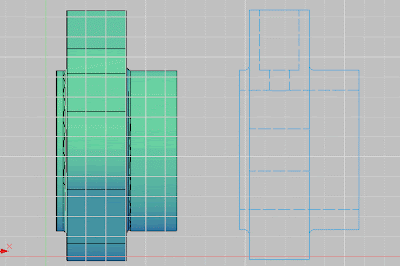
Fig.4
We can now create the projection by clicking ‘Create’ button.
The projection is added to your cursor as a block. You can practice further by creating different projections on your own.

3D Modeling 16: Understanding Ucs


Although dynamic UCS is brought and improved with the version 2007, you have to be aware of the model space and UCS icon and use them efficiently during a 3D drawing. The subject of this article is the UCS icon.
Fig.1
There is a typical UCS icon in a 3D mode in Figure 1. Its view changes according to your Visual Style setting yet, it always gives the direction of X, Y and Z axes. It is important to create a view angle in a way that the axes are seen through the positive sides as I have mentioned in the first article of the series and 3D Modeling Part 1.

Let us examine the Figure.1 together. At the end of the X and Y axes, there are arrows which indicate the positive directions. Z axis is positive if it raises perpendicular through the X-Y plane and it is negative if it goes down through the same plane (Figure 2).
Fig.2
Let us do some practice.

Command: _CIRCLE Specify center point for circle or [3P/2P/Ttr (tan tan radius)]: 0,0 Specify radius of circle or [Diameter] <5.9971>:
Fig.3 UCS is normal, i.e. the circle is drawn in the plan view.

Command: _ucs Current ucs name: *WORLD* Specify origin of UCS or [Face/NAmed/OBject/Previous/View/World/X/Y/Z/ZAxis] : x Specify rotation angle about X axis <90>: Command: _CIRCLE Specify center point for circle or [3P/2P/Ttr (tan tan radius)]: 0,0 Specify radius of circle or [Diameter] <5.9971>:
Fig.4 The circle is drawn after UCS is rotated 90 degrees around the X axis.

Command: _ucs Current ucs name: *NO NAME* Specify origin of UCS or [Face/NAmed/OBject/Previous/View/World/X/Y/Z/ZAxis] : y Specify rotation angle about Y axis <90>: Command: _CIRCLE Specify center point for circle or [3P/2P/Ttr (tan tan radius)]: 0,0 Specify radius of circle or [Diameter] <6.3737>:
Fig.5 The circle is drawn after UCS is rotated 90 degrees around both X and Y axis.

Notice that Z axis is shown as dashed line. So, upon changing the UCS, we can draw in different planes and the UCS icon follows.

Now, let us use ROTATE command in 3D and make use of Z axis of the UCS icon. Actually when you are drawing in 2D mode, you rotate the drawing around Z axis. The only difference is that you see the Z axis in 3D mode. Simply, the command rotates the X-Y plane around the Z axis.
Fig.6
You can see how a circle perpendicular to the horizontal rotates using ROTATE command in Figure 6 when the UCS icon is in the horizontal mode.

You can pick the origin point of the UCS, move it to the lower left corner on the screen and change its settings when drawing in 3D. To do these you have to run the UCSICON command.

Command: _UCSICON ON/OFF: Turns on and off the icon. Noorigin: Move the icon to the lower left corner. ORigin: Places on the origin point. Properties: Opens the UCS icon settings window.
Fig.7 UCS icon settings window.

I tried to explain the UCS icon in 3D modeling. I will explain the UCS icon in detail and try to help you with upgrading your drawing habits in my next article.

3D Modeling 14: Easy way of getting a section from a 3D Model


Throughout this article, we are going to learn how to get a section cut from a 3D model easily. Erhan has written two detailed articles about getting section cuts earlier. (Live Section 1 and Live Section 2) Also, SOLDRAW and SOLVIEW commands, which I am going to explain in more detail soon can be used for getting section cuts.


Yet, getting a section by using SECTION command is easier than those two commands. We can get a section by a single move like FLATSHOT command
Fig.1
Let us now get a section cut quickly from the model seen in Figure 1 by using SECTION command. The command processes as below:

Command: _section Select objects: 1 found Select objects: Specify first point on Section plane by [Object/Zaxis/View/XY/YZ/ZX/3points] <3points>: Specify second point on plane: Specify third point on plane:

First, you have to select the object from which you want to get a section cut. Then you have to define three points that the section passes. Pick the points in the order shown in Figure 1.

The next step is taking out the section object from the model because Autocad draws the object inside our 3D model. Our job is easy:

Command: _move Select objects: l 1 found Select objects: Specify base point or [Displacement] : Specify second point or :

Take out the section object by using MOVE command.
Fig.2
I am going to mention other section plane options of the SECTION command later. You have to wait for ‘3D Plane Designation’ article.

3D Modeling 15: Cut your model using Slice command.


Sections cuts are sometimes taken out from the models we created. That is a useful process to understand inside of our model. SLICE may be the command I like the most among the solid modeling features of AutoCAD.
Fig.1
This command works similar with SECTION command which I have mentioned earlier. That means; firstly the object that is going to be sliced is selected and then, the plane that slice passes. You can run the command via DASHBOARD or Modify > 3D Operations > Slice menu.
Command: _slice Select objects to slice: 1 found Select objects to slice: Specify start point of slicing plane or [planar Object/Surface/Zaxis/View/XY/YZ/ZX/3points] <3points>: Specify first point on plane: Specify second point on plane: Specify third point on plane: Specify a point on desired side or [keep Both sides] : b

The plane definition default way is implying three points. Click for three points that the plane passes. I choose freely 1, 2 points and 3 as perpendicular to the Z axis to slice the model into the half.

Another question the command asks you is that which part you want to be left. I choose ‘B’ for keeping both sides and take the part away by using MOVE command.
There are other answers to the question,

Object/Surface/Zaxis/View/XY/YZ/ZX/3points] <3points>:

to designate the cut surface. Actually, the UCS icon seen on the bottom left of the screen shows the X,Y and Z axes of the current coordinate system. Xy, Yz and Zx axes form a plane as we learned form mathematics.
Fig.2 The planes that UCS axes forms.
That means; our cut surface can be one of these planes. If we were doing the example that way, we would reply as ‘YZ’ rather than ‘3Points’. After that, we can end the process by clicking the middle point that the plane passes. This shows us briefly how axes in User Coordinate System (UCS) forms planes.

3D Modeling 16: Understanding Ucs


Although dynamic UCS is brought and improved with the version 2007, you have to be aware of the model space and UCS icon and use them efficiently during a 3D drawing. The subject of this article is the UCS icon.
Fig.1
There is a typical UCS icon in a 3D mode in Figure 1. Its view changes according to your Visual Style setting yet, it always gives the direction of X, Y and Z axes. It is important to create a view angle in a way that the axes are seen through the positive sides as I have mentioned in the first article of the series and 3D Modeling Part 1.

Let us examine the Figure.1 together. At the end of the X and Y axes, there are arrows which indicate the positive directions. Z axis is positive if it raises perpendicular through the X-Y plane and it is negative if it goes down through the same plane (Figure 2).
Fig.2
Let us do some practice.

Command: _CIRCLE Specify center point for circle or [3P/2P/Ttr (tan tan radius)]: 0,0 Specify radius of circle or [Diameter] <5.9971>:
Fig.3 UCS is normal, i.e. the circle is drawn in the plan view.

Command: _ucs Current ucs name: *WORLD* Specify origin of UCS or [Face/NAmed/OBject/Previous/View/World/X/Y/Z/ZAxis] : x Specify rotation angle about X axis <90>: Command: _CIRCLE Specify center point for circle or [3P/2P/Ttr (tan tan radius)]: 0,0 Specify radius of circle or [Diameter] <5.9971>:
Fig.4 The circle is drawn after UCS is rotated 90 degrees around the X axis.

Command: _ucs Current ucs name: *NO NAME* Specify origin of UCS or [Face/NAmed/OBject/Previous/View/World/X/Y/Z/ZAxis] : y Specify rotation angle about Y axis <90>: Command: _CIRCLE Specify center point for circle or [3P/2P/Ttr (tan tan radius)]: 0,0 Specify radius of circle or [Diameter] <6.3737>:
Fig.5 The circle is drawn after UCS is rotated 90 degrees around both X and Y axis.

Notice that Z axis is shown as dashed line. So, upon changing the UCS, we can draw in different planes and the UCS icon follows.

Now, let us use ROTATE command in 3D and make use of Z axis of the UCS icon. Actually when you are drawing in 2D mode, you rotate the drawing around Z axis. The only difference is that you see the Z axis in 3D mode. Simply, the command rotates the X-Y plane around the Z axis.
Fig.6
You can see how a circle perpendicular to the horizontal rotates using ROTATE command in Figure 6 when the UCS icon is in the horizontal mode.

You can pick the origin point of the UCS, move it to the lower left corner on the screen and change its settings when drawing in 3D. To do these you have to run the UCSICON command.

Command: _UCSICON ON/OFF: Turns on and off the icon. Noorigin: Move the icon to the lower left corner. ORigin: Places on the origin point. Properties: Opens the UCS icon settings window.
Fig.7 UCS icon settings window.
I tried to explain the UCS icon in 3D modeling. I will explain the UCS icon in detail and try to help you with upgrading your drawing habits in my next article.

3D Modeling: Drawing a 3D Bearing in 15 minutes


You’ll comprehend drawing a simple 3D bearing with standard dimensions by using REVOLVE and 3DARRAY commands. All dimensions of our drawing is free.
Figure.1 The final view of the bearing.
First of all, we have to draw the 2D object in the figure below. The pint here is it must be polyline. You can draw it with lines and then modify it by PEDIT command.
Figure.2 The 2D Figure to construct our bearing.
The blue line in the figure which has an important role in drawing the rest is the axis of our bearing. After completing the drawing, switch to SW isometric view and REVOLVE the figure.
Figure.3 Switching to Isometric View
Command:_revolve Select objects to revolve: (Select the inner section)
Select the inner section.
Figure.4 Typical wiew during Revolve command
Specify axis start point or define axis by [Object/X/Y/Z] Specify our axis.

Define the axis by implying the endpoints of our blue line.

Specify angle of revulation or [STart angle] <360>: Revolve Angle

Press ‘ENTER’ to 360 default.

Now, let us utilize SPHERE command to construct our balls
Figure.5 The Completed Bearing Skeleton

Command: Sphere
Figure.6 The selection of center and quadrant

To construct one of our balls, click the center of the circle and then the quadrant. We are going to use 3DARRAY command to get 23 of those balls.
Command: 3darray Select Objects: Select our sphere and press ‘ENTER’. Enter the type of array [Rectangular / Polar] : Type ‘P’ and press ‘ENTER’. Enter the number of items in the array: type ‘23’ and press ‘ENTER’. Specify angel to fill (+=ccw, -=cw) <360>: Press ENTER. Rotate arrayed objects? [Yes/No] : Press ‘ENTER’. Specify center point of array: Specify the axis. Pick the endpoints of the blue line.
Figure.7 You should see a figure like above if you have done everything correctly.

Let us now REVOLVE our last part.
Command:revolve Select objects to revolve: Select the outer part. Specify axis start point or define axis by [Object/X/Y/Z] : Pick the endpoints of the blue line. Specify angle of revulation or [STart angle] : Type ‘270’ and press ‘ENTER’.
Figure.8 The final state of our model

If you have done all processes mentioned above, you would get a model like the one above. You can check it out in shaded mode by typing ‘SHADE’ and press ‘ENTER’.

Those who are using version 2007 can get the figure above by pressing ‘Conceptual‘ Visual Style.
Regards.

3D Modeling 12: Getting 2D view from a solid model by Flatshot command


One of the new features coming with Autocad 2007 is FLATSHOT command. By means of this command, you can get aspects of solid 3D objects. The command which is very easy to use gets the projection image of your instant point of view. We are going to use 3D gusket drawing which we did as an application before. Let us download the drawing and proceed.
The only point that you have to be careful when you are using the command is to obtain the right point of view for your model which you want to the get the image of. This is very simple by using ‘View’ menu in Autocad.
Fig.1
Firstly, switch to left side view by selecting ‘View/3D Views/Left’ option.
Fig.2 Left elevation of our gusket
Now, select the FLATSHOT command from the 3DMAKE part of the DASHBOARD and there comes the FLATSHOT dialog box
Fig.3
FLATSHOT outputs the projection as a Autocad block. The options in the dialog box are based on this. The “Insert as new block” option in the ‘Destination’ section of the dialog box always enables the creation of the projection as a new block. ‘Replace existing block’ option modifies the current block and ‘Export to a file’ option creates a external file. We use the first option.

The two other sections of the menu includes the options of ‘Foreground Lines’ and ‘Obscured lines’. You can change the color and type of the lines here. I chose dashed lines in obscured lines section.
Fig.4
We can now create the projection by clicking ‘Create’ button.
The projection is added to your cursor as a block. You can practice further by creating different projections on your own.

  © Blogger template 'Perfection' by Ourblogtemplates.com 2008

Back to TOP